
Transform your business
...with virtual assistants
Latest Blog Posts

Project management software for VAs: compare workflows
Project management software for VAs brings tasks, deadlines, and client communication into one shared workflow. It can support scheduling, time tracking, resource allocation, and collaboration. Use it to assign work, set priorities and due dates, plan milestones, and monitor progress.
When you coordinate work across clients, clear systems matter. The right setup helps you spot what needs attention, keep people aligned, and move routine tasks forward without scattered messages or manual reminders.
This guide compares about ten project management tools and the workflows they support. You’ll learn which features help with collaboration, visibility, and day-to-day execution, plus what to weigh when choosing a tool, from integrations and ease of use to customization. Use the comparison to find a practical fit for the way you and your clients work.
Key Takeaways
- Organize client work around clear owners, priorities, deadlines, and deliverables so the next action is easy to see.
- Use shared updates and progress views to keep clients aligned without relying on scattered messages.
- Choose a workflow first, then select tools that fit it, including the integrations and customization your tasks require.
- Compare features such as task tracking, reporting, automation, and time tracking to identify where a virtual assistant can reduce administrative work.
What is project management software for virtual assistants?
Project management software gives a virtual assistant and client one place to organize work. It connects ownership, deadlines, milestones, and task status to each client’s workflow.
Client-Centered Task and Workflow Tracking
Start with the client’s desired outcome, then break it into tasks, owners, and review steps. For example, a social media workflow can track drafting, client approval, and scheduled publication as separate statuses. Unlike a general task list, this reflects the client’s actual process. Keep client files and discussions access-controlled, and limit access to people who need it.
For practical delegation steps, use this virtual assistant hiring guide alongside your workflow plan.
Task Assignment, Priorities, and Deadlines
Assign each task to one owner, set its priority, and enter a deadline. Then link dependent work, such as requiring approval before scheduling a campaign. This establishes responsibility and timing, while workflow tracking captures the sequence of steps. A virtual assistant can use reminders and status updates to flag blocked tasks before they disrupt the schedule.
Individual platform pricing varies by plan and selected features.
Project Planning and Task Organization
Project planning turns a client request into milestones, timelines, and manageable tasks. Group related work by project, then use labels or folders to separate clients and work types. Unlike assigning individual tasks, planning shows how the pieces fit together and what must happen first. Review project status regularly, especially when the client changes the scope or approval timing.
Before choosing software, review who can access client information, how permissions work, and where shared files are stored. Use unique account credentials and grant only the access needed for each task.
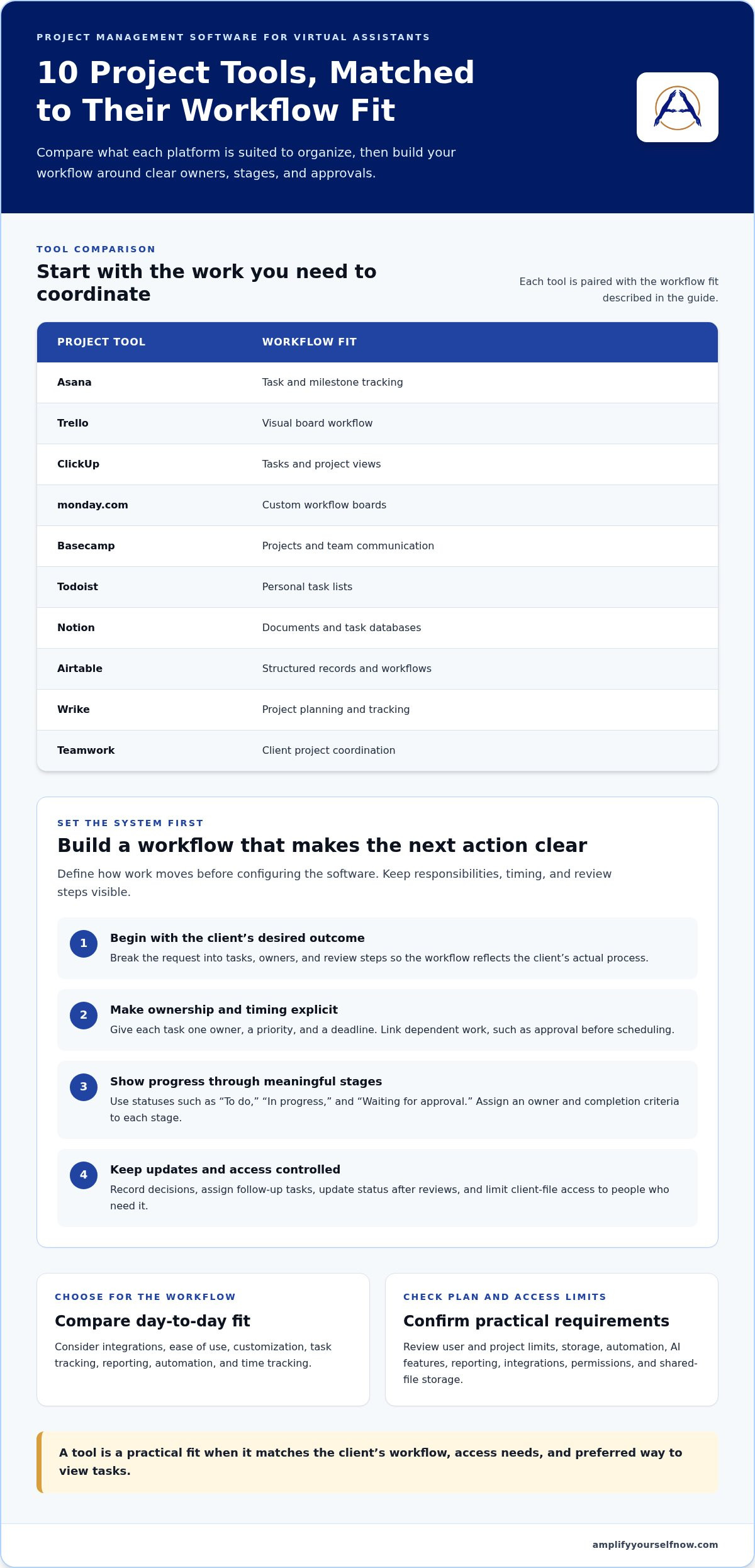
| Option | Workflow fit |
|---|---|
| Asana | Task and milestone tracking |
| Trello | Visual board workflow |
| ClickUp | Tasks and project views |
| monday.com | Custom workflow boards |
| Basecamp | Projects and team communication |
| Todoist | Personal task lists |
| Notion | Documents and task databases |
| Airtable | Structured records and workflows |
| Wrike | Project planning and tracking |
| Teamwork | Client project coordination |
Choose software that matches your client’s workflow, access needs, and preferred way to view tasks.
Collaboration, reporting, and project visibility
Shared project platforms give clients and assistants a common view of active work. Use boards, comments, and reports to keep decisions connected to tasks.
Client Collaboration and Communication
Client collaboration keeps questions, feedback, and approvals close to the work they affect. For a campaign draft, the client can comment on the task, request edits, and approve the final version in one workspace. Unlike internal team collaboration, this focuses on client access and decision-making. Set a clear communication routine: record decisions, assign follow-up tasks, and update status after each review.
Reusable templates can also give each client a consistent way to submit requests. Include the goal, required files, deadline, and approval contact in the template. That structure makes task management easier across multiple projects without forcing every client into identical workflows.
Team Collaboration
Team collaboration coordinates work between people contributing to the same outcome. A designer can attach a draft while a social media manager adds publishing details and flags missing approvals. Unlike client communication, this focuses on handoffs, dependencies, and shared responsibilities. Keep updates focused: name the next owner, describe the needed action, and link it to the relevant task.
Shared boards help teammates spot work waiting on someone else. For example, a “Ready for review” column shows when a teammate needs to act before work can move forward.
Reporting and Project Visibility
Reporting summarizes progress, while project visibility shows the live status of individual tasks. A dashboard might group work by status, owner, or deadline, helping an assistant identify overdue approvals or blocked deliverables. Unlike messaging, which records conversations, a dashboard can show the project’s overall condition. Choose reports that answer practical questions, such as what is complete and what needs attention.
Review the board with the client during regular check-ins. Confirm completed work, identify blockers, and update upcoming priorities. This keeps both sides aligned without a lengthy email recap.
A shared workspace, clear ownership, and timely updates create a reliable record of decisions and progress, keeping collaboration visible.
Establishing workflows and protocols
Define the workflow before configuring the tool. Clear stages make assignments, automation, and progress easier to monitor.
For a solo virtual assistant, assess free plans by user and project limits, storage, automation, AI features, reporting, and integrations. A plan is a fit when its limits support your active work and required connections.
Custom Project Workflows
A custom workflow maps the steps of a specific project instead of applying one fixed process to every client. For example, a content project might move from request to draft, review, revisions, and approval. Set an owner and completion criteria for each stage so status reflects actual progress. Unlike a custom workflow’s design, automation moves work between stages or triggers routine actions.
A board can provide a visual way to track work as its status changes. A virtual assistant can create columns such as “To do,” “In progress,” and “Waiting for approval.” The board gives a visual view of assignments, while custom labels can distinguish client projects or work types.
Integrations and Workflow Automation
Integrations connect a project platform with other tools in your workflow. Before enabling one, identify the repeated handoff it should support, such as turning a submitted request into a task. Automation can then handle routine assignments or reminders, reducing manual updates. While a custom workflow defines the process, automation carries out selected steps within it.
Test each automation with a sample task. Confirm the trigger, assigned person, and resulting status before applying it across client projects. This makes errors visible and helps you check that the workflow works as intended.
AI features can support project work by generating summaries, predicting completion dates, identifying budget risks, recommending resources, or forecasting capacity constraints. Treat each output as information to review, not a substitute for clear assignments and human decisions. For example, check an AI-generated summary against the task board before sharing it with a client.
Choose a platform by matching its workflow options, integrations, and free-plan limits to the work you manage.
Project management features for virtual assistants
For 2026, shortlist Asana, Trello, ClickUp, monday.com, Basecamp, Wrike, Teamwork, Notion, Airtable, and Todoist. Compare task management, time tracking, and client collaboration against your actual workflow.
Task Management
A project management tool organizes assignments, deadlines, dependencies, and progress in one system. Compare platforms by how clearly assistants can see ownership and next steps. For example, a product launch task might include drafting, review, and approval, each with its own status. A simple interface matters when the tool is part of everyday work.
For task-focused work, consider Asana, Trello, ClickUp, or monday.com, then compare how their boards and views fit your routine. Trello uses Kanban, while a tool with several project views may suit work that needs different ways to organize tasks. The best fit is the one your team will update consistently.
Time Tracking
Time tracking records how long work takes; task management shows what needs doing. Some project management tools include time tracking, while others require a separate tool or integration. Compare this capability before choosing. For example, an assistant handling recurring client reports may need time entries connected to specific projects, not just a daily total.
Check whether time tracking is easy to use alongside task updates. If assistants have to switch tools or enter the same details twice, records can be harder to maintain. Compare how each platform handles time records, project association, and reporting, rather than treating a timer alone as sufficient.
Client collaboration is another key distinction. Shared project updates keep clients informed, while comments and approvals connect feedback to the relevant task. Test a sample workflow with a client: assign a task, record a time entry, request approval, and review the resulting status. This shows whether the platform supports the full collaboration process.
If recurring coordination is taking time away from higher-priority work, consider delegating it.
Amplify Yourself: Executive Virtual Assistant
Amplify Yourself connects business owners with an Executive Virtual Assistant to own project coordination and routine operational tasks. A project management platform provides the shared workflow; an assistant can keep assignments moving, update task status, and support day-to-day execution. This can help when you’ve chosen a tool but need more capacity to manage recurring work.
Before delegating, define the assistant’s responsibilities, the tasks they’ll manage, and how you’ll review progress in your chosen platform. Clear access, ownership, and communication protocols help the working relationship fit your existing process. If you need support with customer inquiries or online store operations, a Customer Support Representative or E-Commerce VA may be a closer fit.
Contact Amplify Yourself to discuss whether an Executive Virtual Assistant fits your workload.
Make Your Workflow Easier to Sustain
The best project management software for VAs is the one your team will keep using as work changes. Treat your setup as an ongoing practice, not a one-time configuration. Review what gets missed, where approvals stall, and which updates require unnecessary manual effort. Then adjust the process before adding more tools.
Once responsibilities are clear, decide what to keep in your hands and what to delegate. A consistent handoff gives an assistant the context to act while you retain oversight of priorities and outcomes. Start with a defined set of recurring tasks, document what “complete” means, and refine the workflow as you learn what works.
Ready to make delegation part of your system? Contact Amplify Yourself to discuss your needs. Build a workflow around the way your business operates, then keep improving it with confidence.
Frequently Asked Questions
What features should virtual assistants look for in project management software?
Prioritize clear task ownership, useful search, and permissions that match each person’s role. For example, a virtual assistant handling separate client accounts should be able to find a specific task without opening every project. Consider recurring task support for regular work, such as preparing a weekly report. Choose features based on your workload, not the length of a platform’s feature list.
What tools let VAs manage multiple clients and keep projects separate?
Choose a platform that lets you organize work into separate client workspaces or projects, then use a consistent naming format. For example, label a project “Client name | Monthly newsletter” to distinguish it from another client’s campaign. Set access permissions deliberately, especially when clients or collaborators share an account. This makes work easier to find and reduces the risk of sharing the wrong file.
Which project management platforms integrate with email, calendars, cloud storage, and invoicing tools?
Choose a platform whose integrations support the email, calendar, storage, and invoicing apps you already use. Check whether each connection is native or requires a separate connector, and whether it supports the action you need. For example, decide whether a calendar event should create a task or an invoice should link to a project. Test the workflow before relying on it.
How can a virtual assistant set up a client project management workflow?
Start with one recurring client request, such as preparing a monthly newsletter. Note the handoffs, required materials, review points, and final deliverable. Create a task for each stage, assign an owner, and include the client’s approval step. Run the workflow once, then revise unclear instructions or redundant steps. A small test can expose process gaps before you expand the setup to other work.
Which project management tools are easiest for clients with limited technical experience?
Look for a clean interface where clients can find tasks, leave feedback, and see what needs their attention without learning complex settings. A shared project view and plain labels, such as “Needs review” or “Approved,” make participation easier. Keep client instructions brief and introduce only the actions they need. The best fit is a platform clients can use consistently.

READY TO GIVE US A TRY?
Get Started for Free Today!
We'll connect you with top overseas talent for all your business endeavors.
Call 925-515-9343
Email: [email protected]

Privacy Policy | ©2026 Amplify Yourself, LLC. All Rights Reserved
Instagram
LinkedIn